When you see a suspicious message, reporting it quickly helps protect not only your account, but others across the UM System. It only takes one click for attackers to compromise an account, and the longer a phishing message goes unreported, the more people may be affected.
You do not need proof to report a suspected phishing message. You will not get in trouble for reporting suspected phishing, even if you are unsure or clicked a link.
Both desktop and mobile versions of Outlook have the option to report the email directly via the "Report" or "Report Message" button.
Report Phishing via Outlook
Reporting on Desktop
Reporting on Desktop
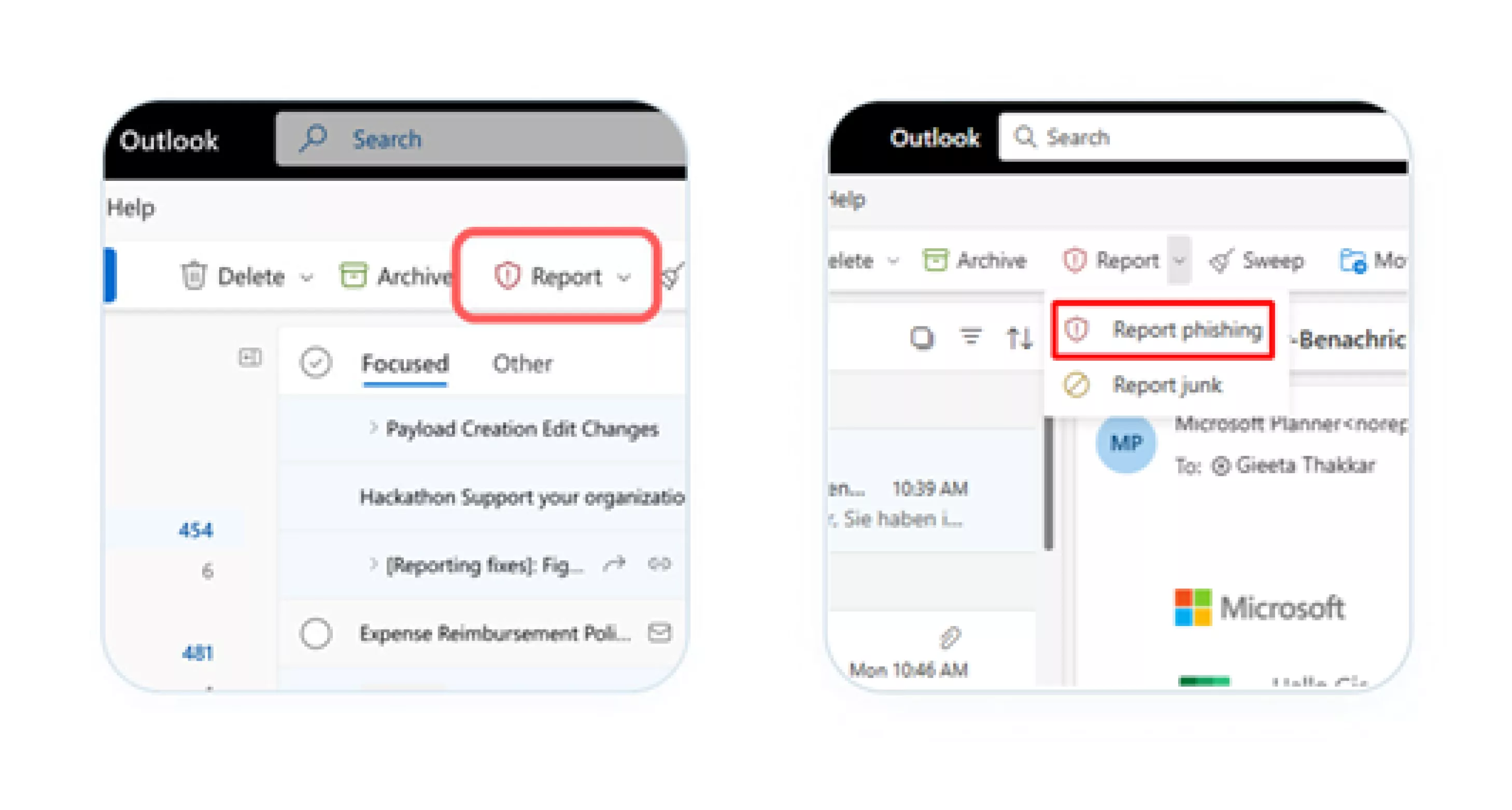
In Outlook for desktop, complete the following steps:
- Select the message and click 'report'
- Select the suspicious email from the list of messages.
- Click the "Report" button from the action bar.
- Select the report type
- A dropdown menu opens after clicking the "Report" button.
- Select "phishing" from the dropdown menu.
- All done; the email message will be removed
Report Phishing via Outlook
Report via Mobile Device
Report via Mobile Device
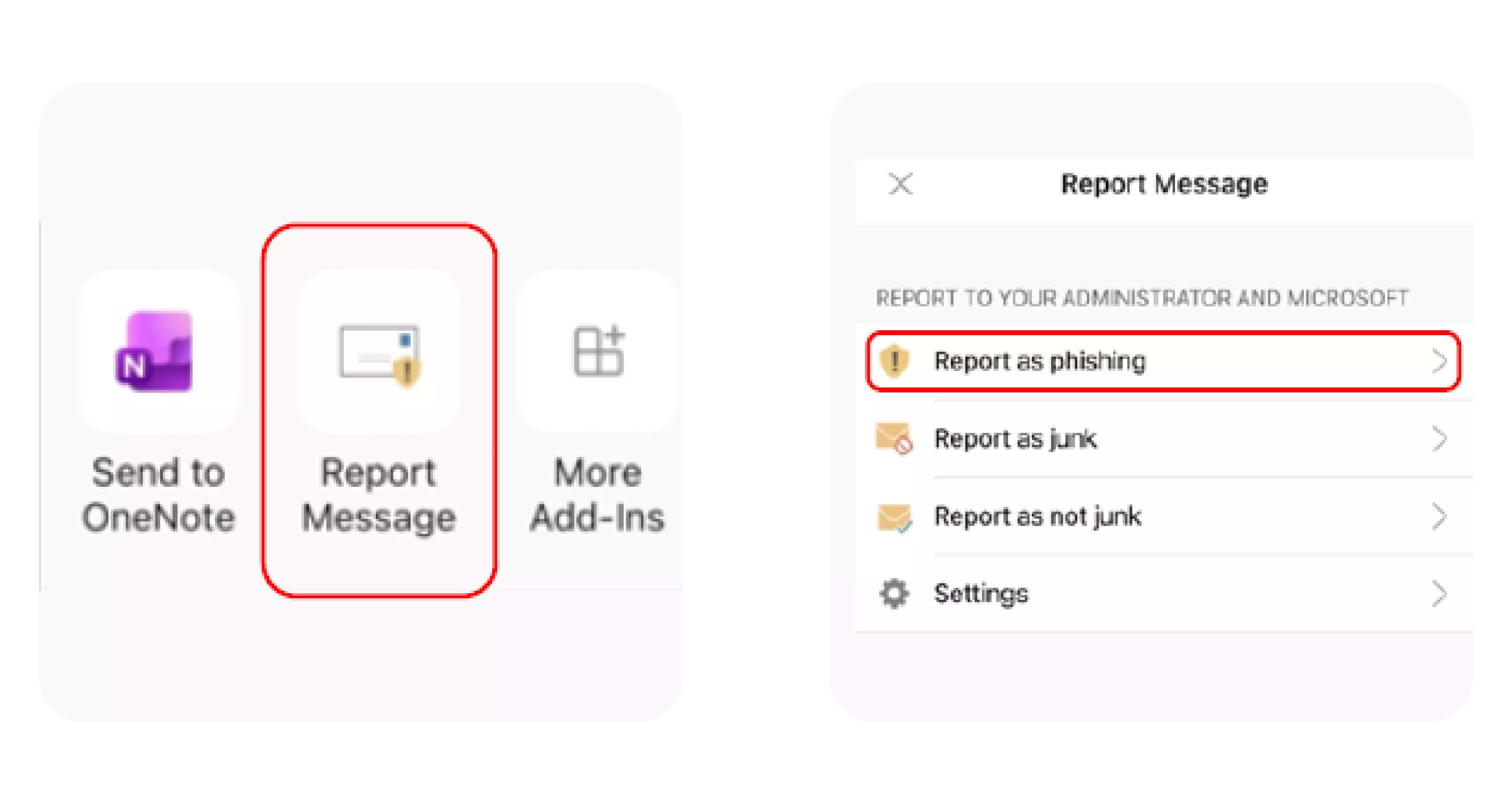
In the Outlook app on a mobile device, complete the following steps:
- Open the message and click 'report'
- Open the suspicious email message.
- Tap the 'three dots' menu (horizontal for iOS; vertical for Android) at the top right of the message.
- Select "Report Message" from the menu.
- Select the report type
- A new menu opens after clicking the "Report Message" button.
- Select "Report as Phishing" from the list.
- All done; the email message will be removed